
Storing files in Teams is great when you're sharing them with others but, for files and folders that you use regularly, this can mean that there are a few more clicks than you'd like to get to the files that you need.
Office Portal
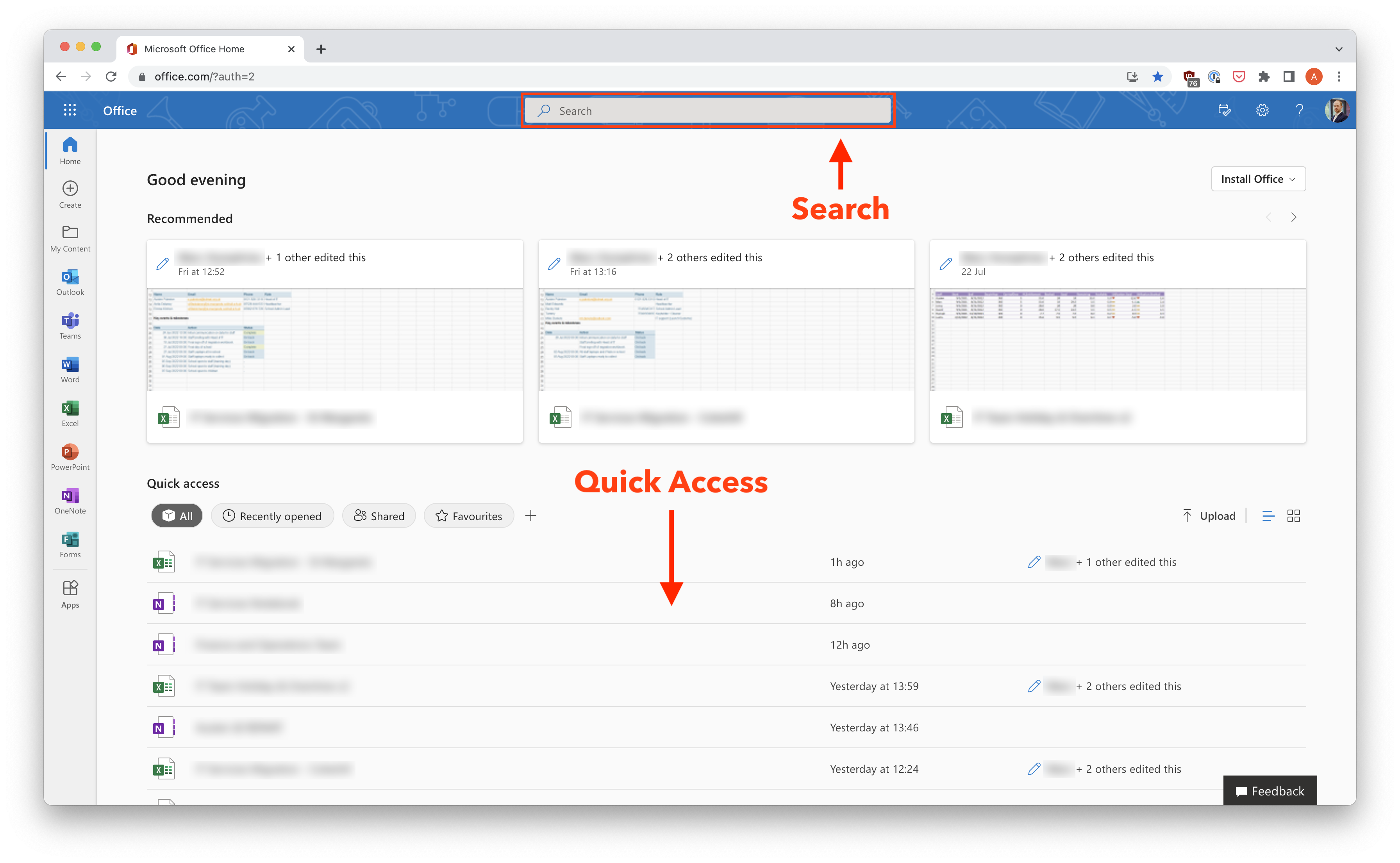
The office portal gives quick access to recent files that you have worked on, and recommended files from elsewhere in your teams. You can also use the search to find files from across the organisation.
https://www.office.com/?auth=2
Recent & Pinned Files (Word, Excel, PowerPoint)
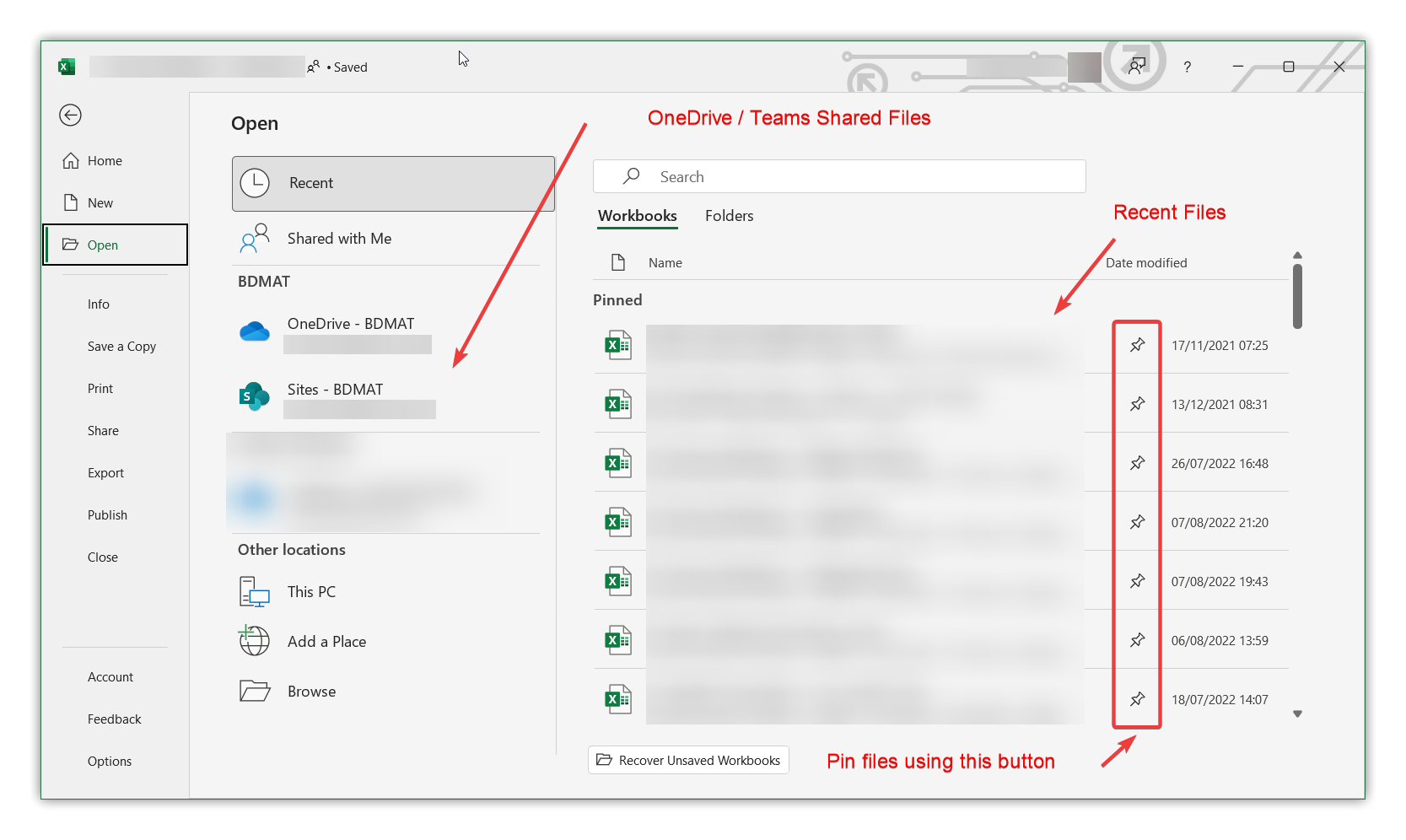
Word, Excel and PowerPoint all provide quick access to your recent files. You can also pin files that you access regularly within these applications. The screenshot below is from Excel, but the same options are available in Word and PowerPoint.
Syncing files to your computer
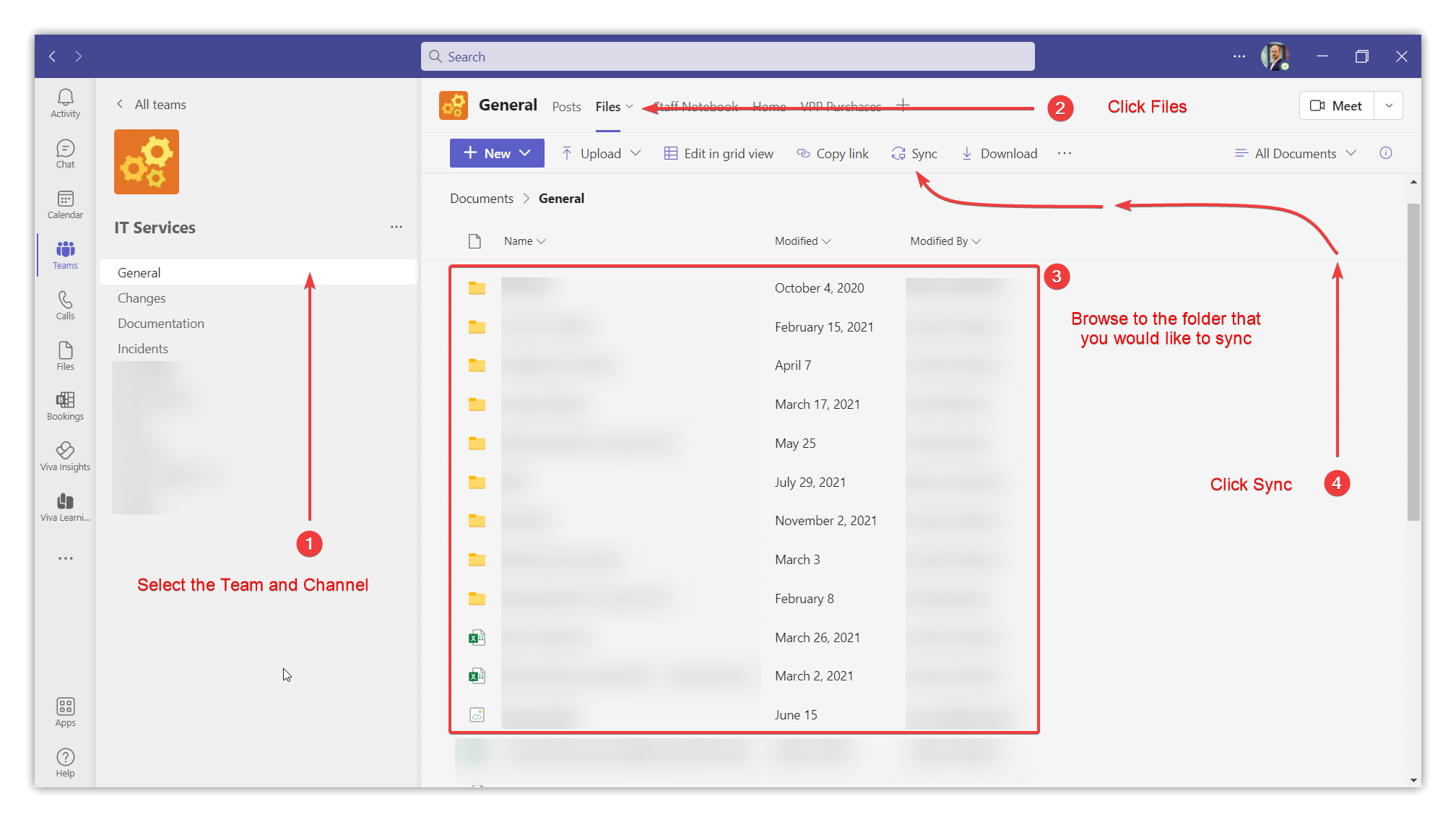
If you regularly work from a specific Team, Channel, or Folder, you can Sync the folder to your computer so that you can access the files through File Explorer.
- Open Teams and select the Team and Channel where your files are
- Select the "Files" tab
- Browse to the folder that you would like to sync
- Click "Sync"
Note: Syncing a large number of files and folders to your computer can start to slow down your computer. Consider only syncing the folders that you need quick access to.
Comments
0 comments
Please sign in to leave a comment.