
Network Drives
Network drives (staff shared, etc) aren't automatically set up on the new HP laptops and needs to be added manually. There is a file on the desktop of the new laptops called "Add network drives":
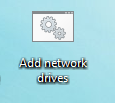
Double click this file and a command prompt window will open asking you to enter your username and password:
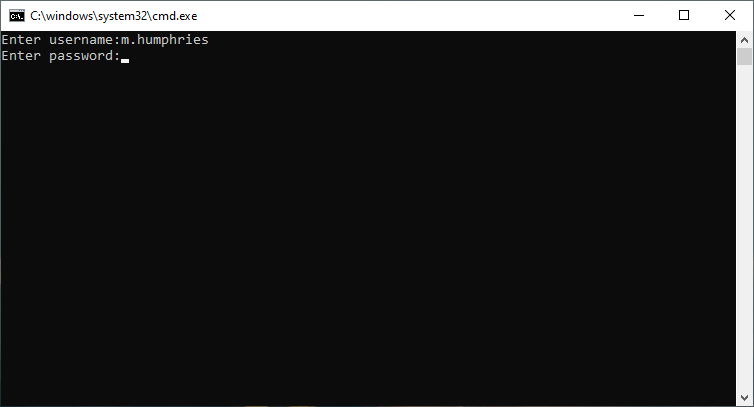
The login details required are the login details used for the old computers. Once these have been entered the window will vanish and the network drives will be added.
Microsoft Office 365
When logging into these laptops, you are logging in with a new @nonsuch.bdmat.org.uk account. Currently this isn't being used other than to log into the laptop but when opening Office 365 apps for the first time it will automatically sign you in with the new account.
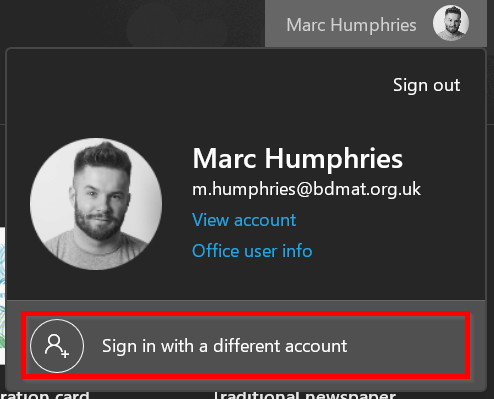
To access your usual files and services you'll need to log in with your usual @nonsuch.bham.sch.uk email address. Open Word, Excel or whichever application you need to use, then click on your name at the top right and click "Sign in with a different account" and then log in as normal:
Resetting Microsoft 365 password
When first logging into your laptop you'll be prompted to set up some extra security information. This allows you to reset your password yourself.
To do this, please click this link and follow the instructions: https://passwordreset.microsoftonline.com/
Comments
0 comments
Please sign in to leave a comment.