
There are a few ways to share a PowerPoint presentation with the other participants in a Zoom meeting, this article covers most options and a few nuances which might catch you out.
There are two parts to this guide as the process differs slightly if you have two screens, or are using a laptop with another screen connected. Click on the links below to go straight to the relevant sections.
Note: It's easiest if you have your PowerPoint file open before you start your Zoom meeting.
Sharing a PowerPoint presentation.
- Open your PowerPoint if you have not done so already.
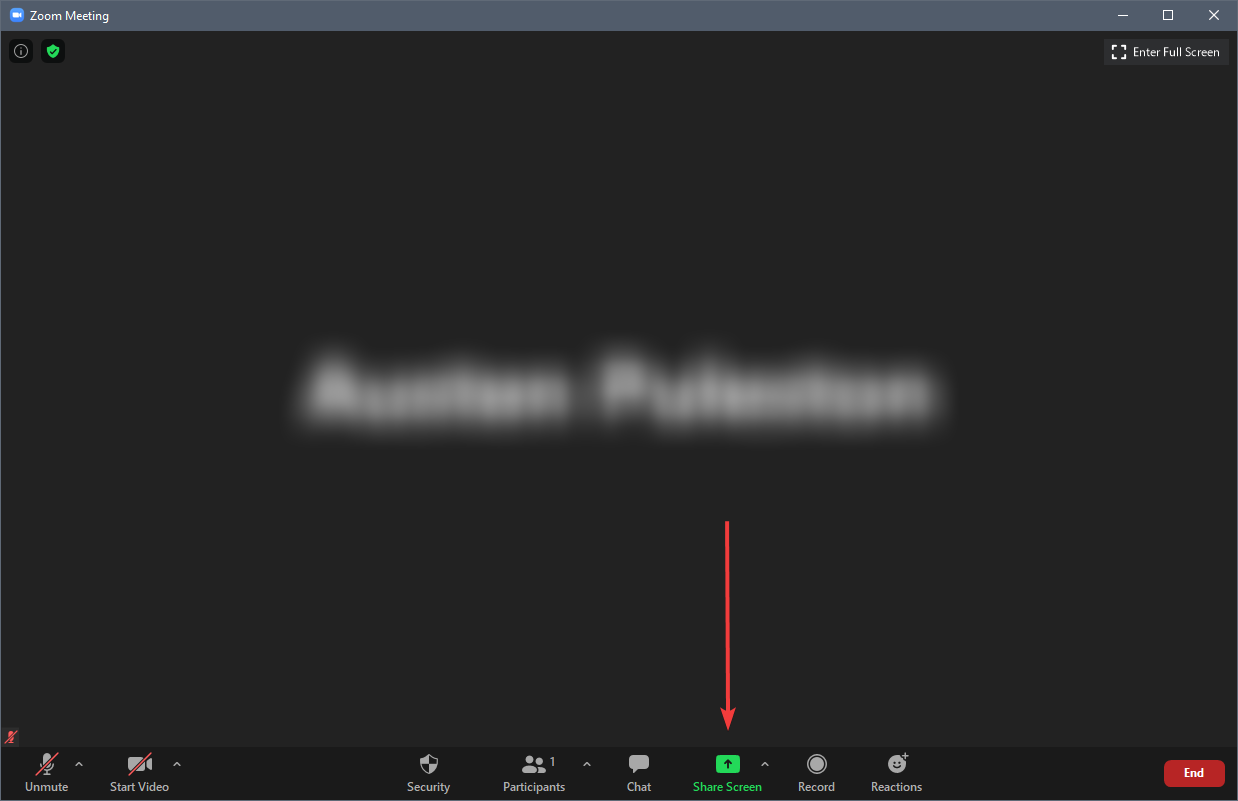
- Click on the Share Screen button in Zoom.
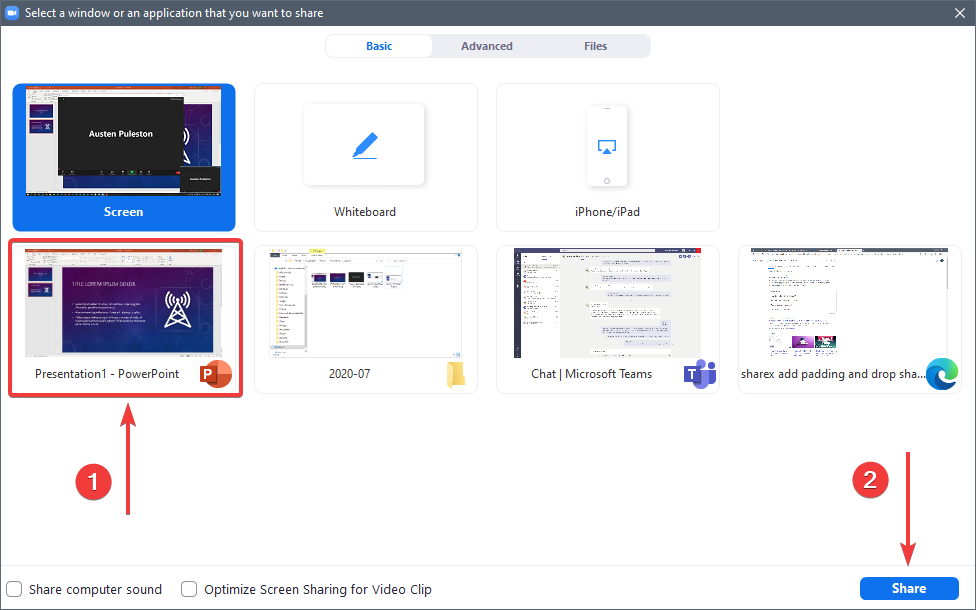
- Select your PowerPoint presentation and then click the Share button
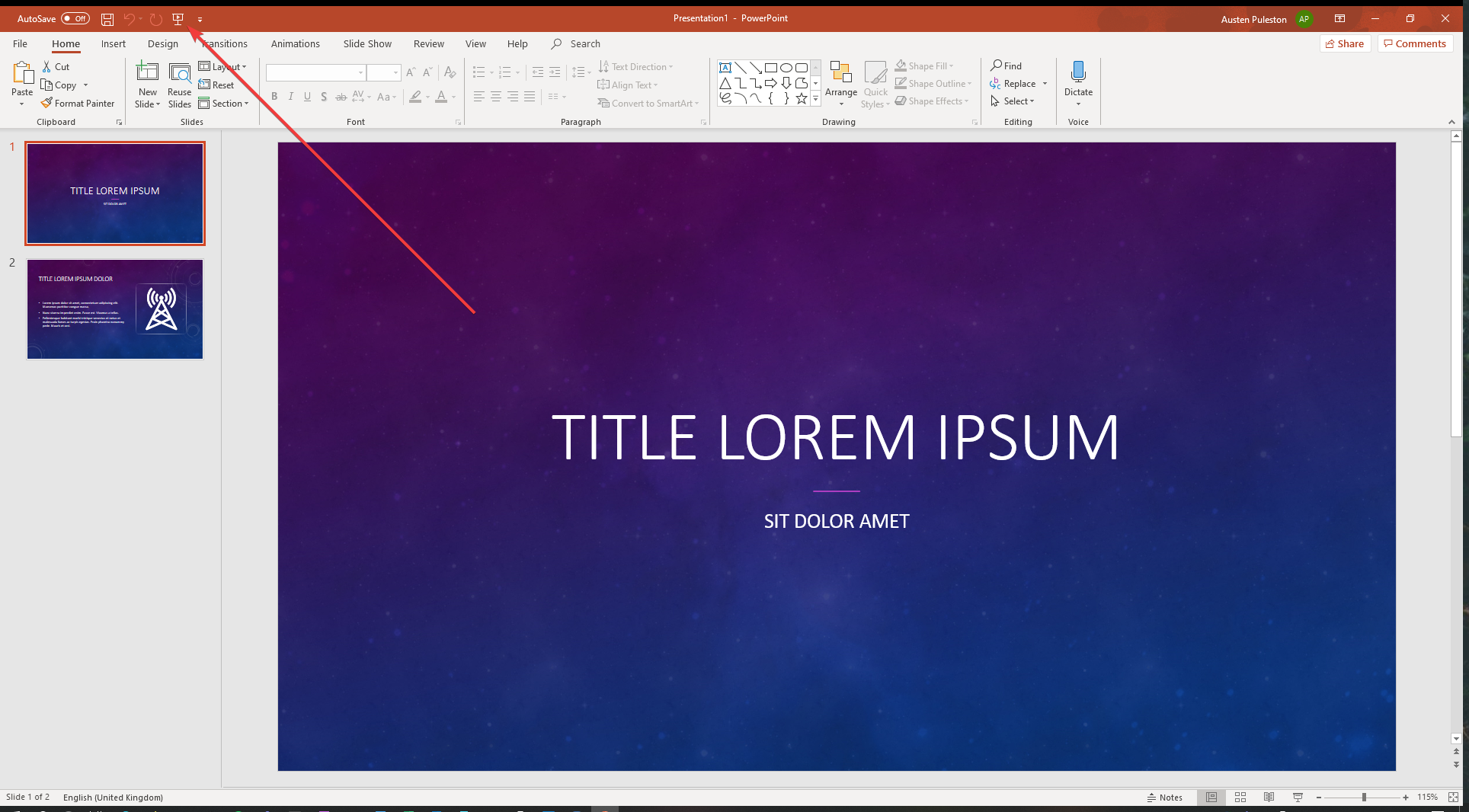
- Start your slideshow by using the
 button at the very top of the window, or pressing F5 on the keyboard.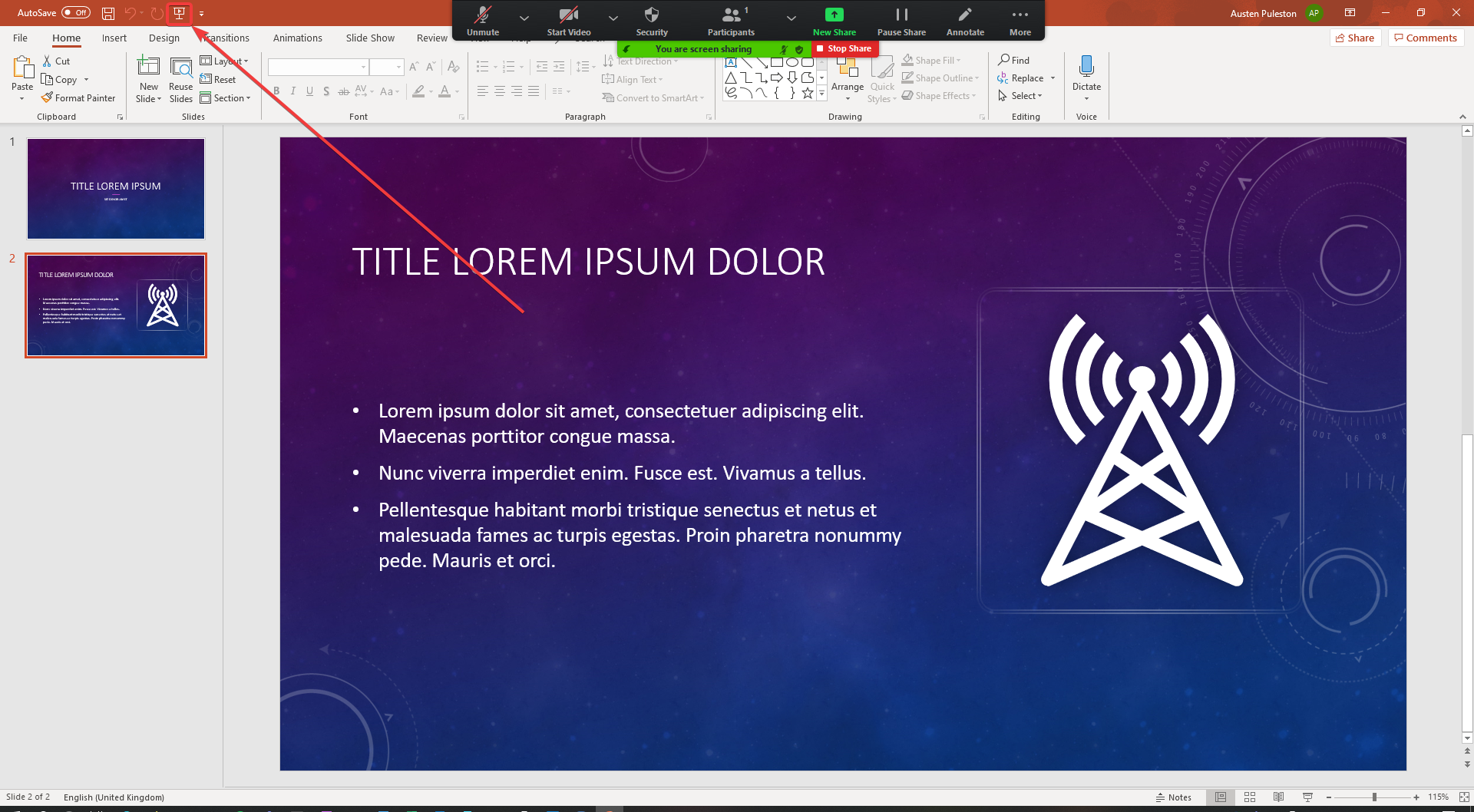
- You can now click through your slideshow as normal. The other participants in the meeting will see the presentation exactly as you do.
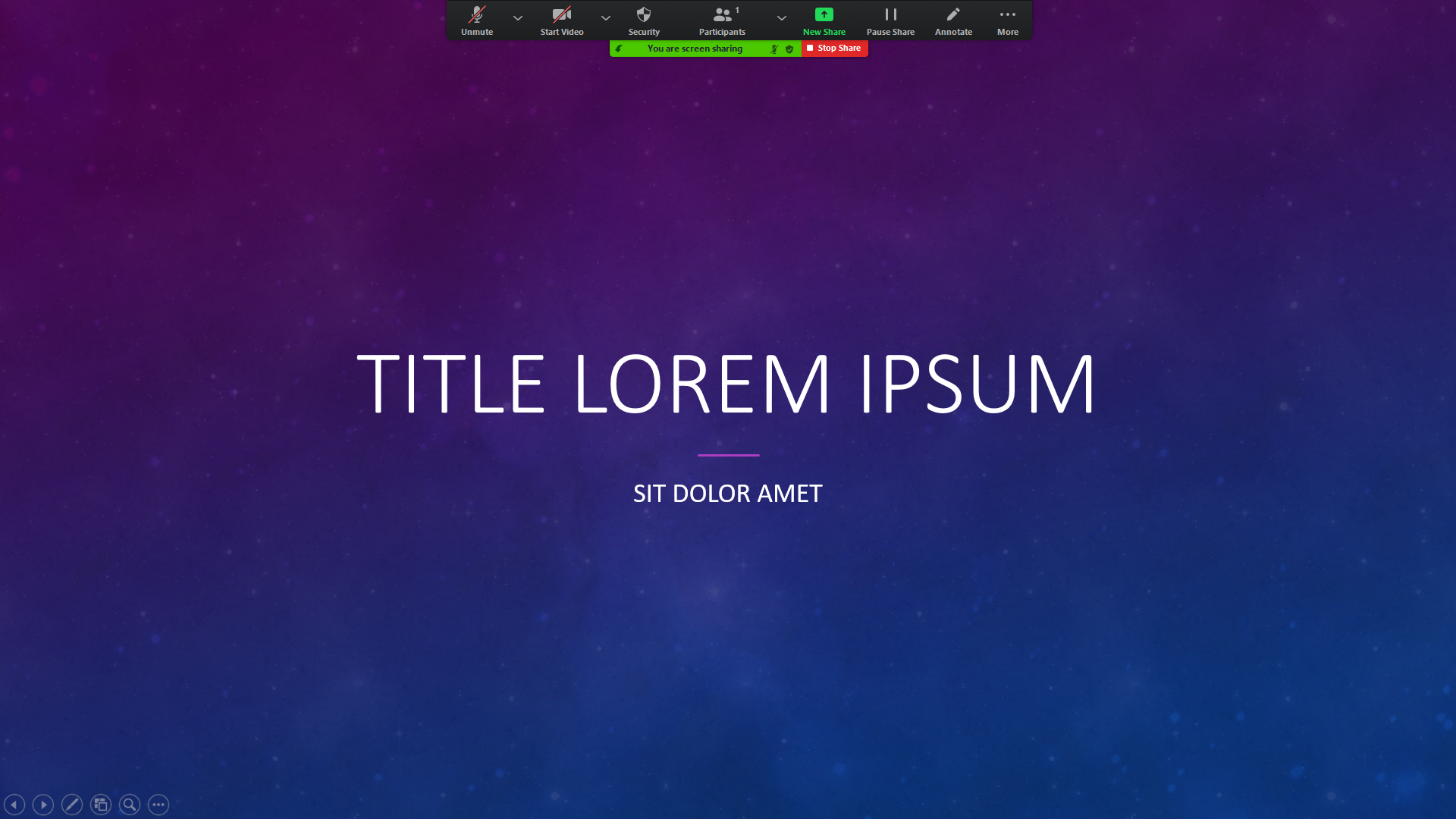
- Once you are done with your presentation, click on the Stop Share button
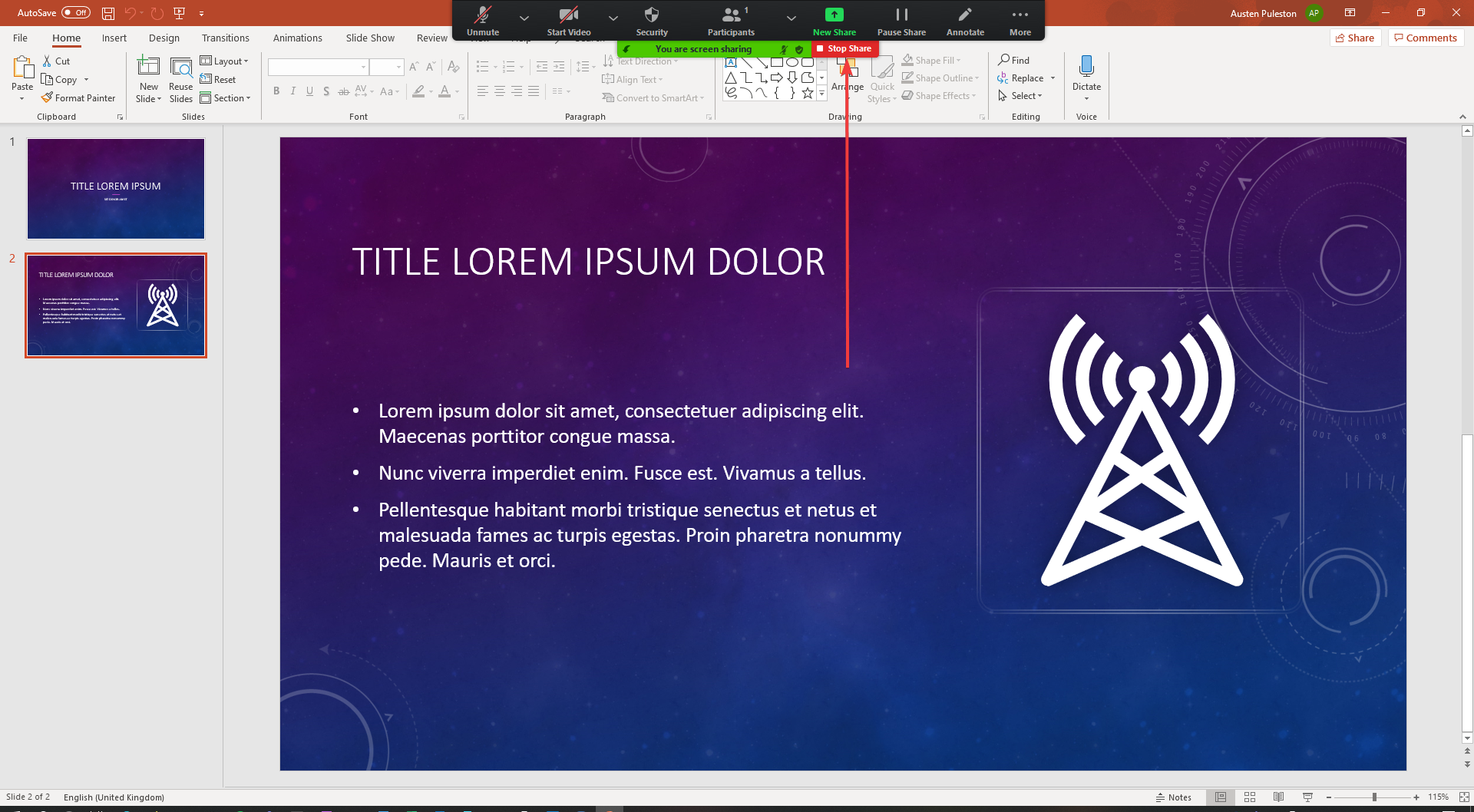
Sharing a PowerPoint presentation with two screens
If you use two screens, there are a couple of extra steps to make sure that the participants see the slide show, not the presenter view.

- Open your PowerPoint if you have not done so already.
- Start your presentation (do this before you click the share button in Zoom)
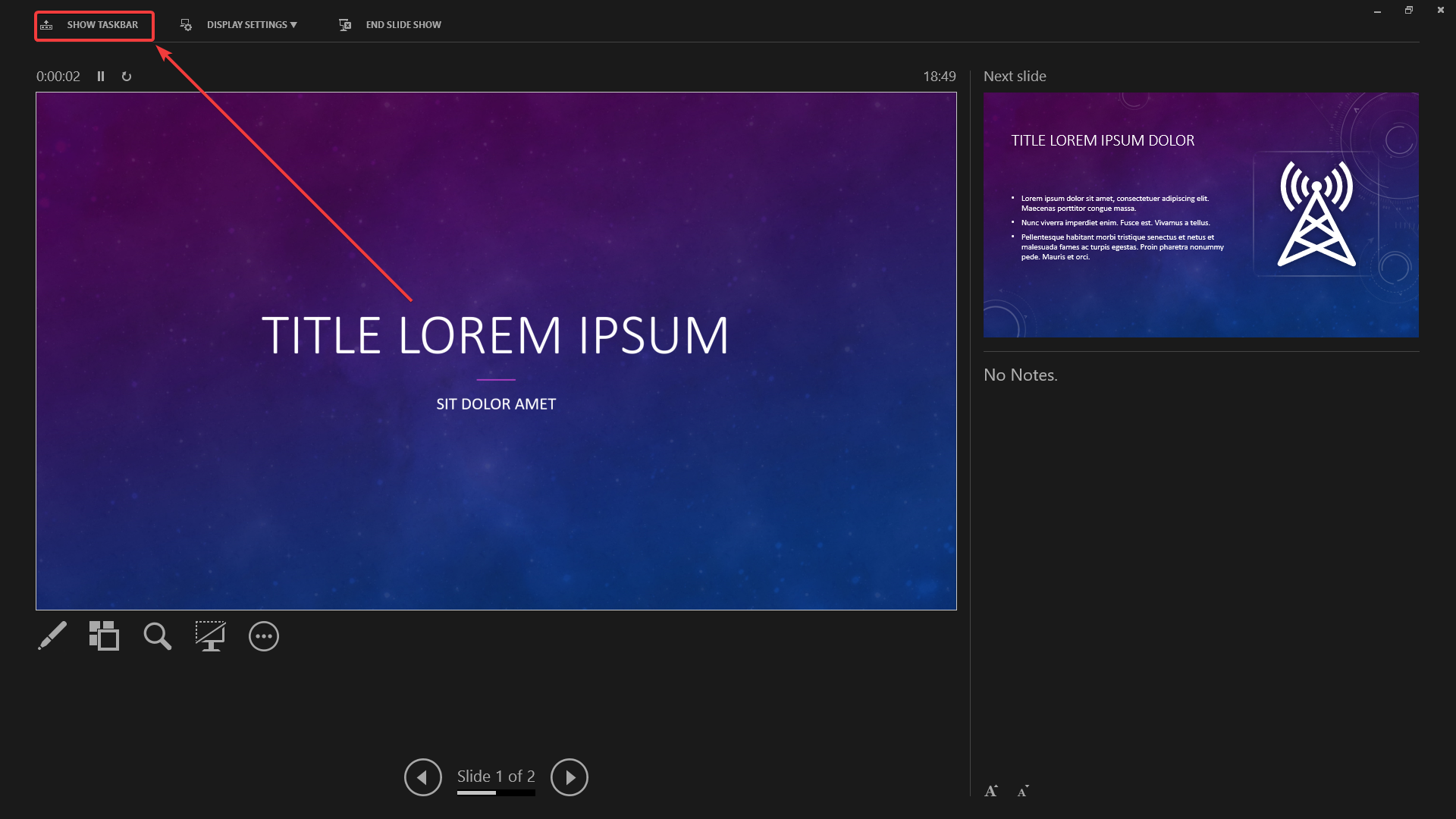
- Click on the Show Taskbar button.
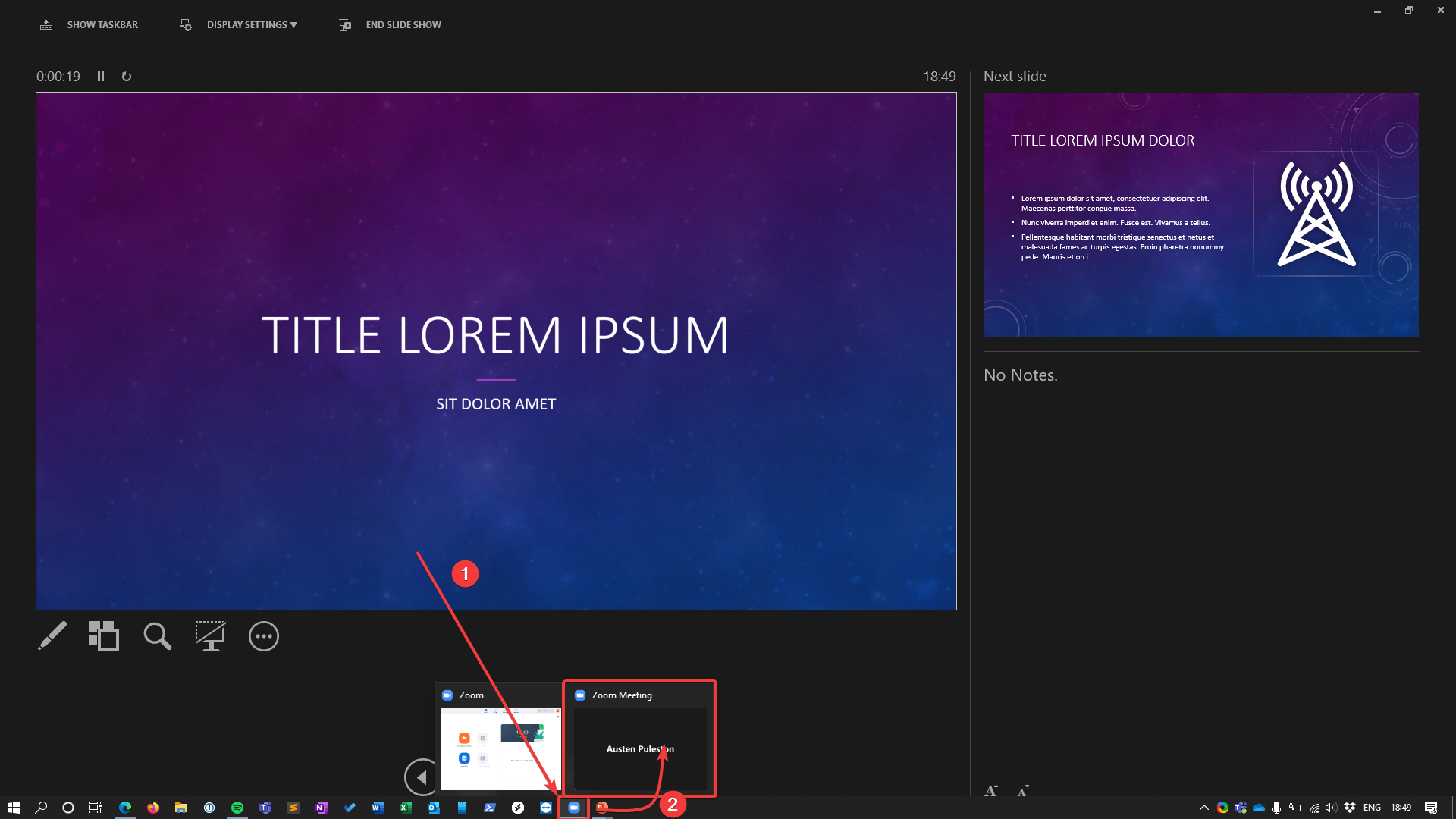
- Click on the Zoom icon, then click on the meeting to switch back to the meeting.
- Click on the Share Screen button in Zoom.
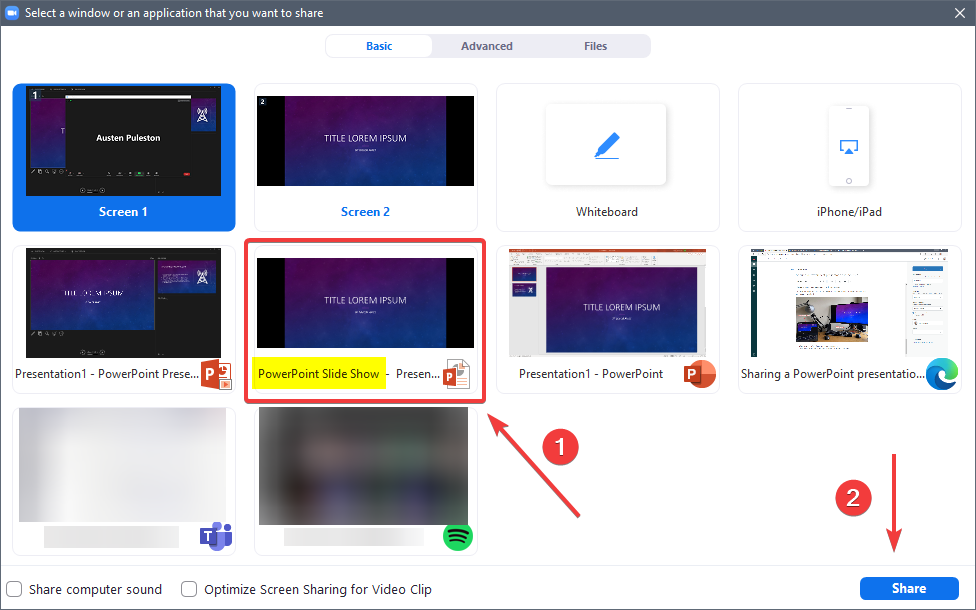
- Select the slide show. Take care to choose the correct one as you will see several options which look similar. The one you need will be titled "PowerPoint Slide show...". Click Share once you've selected it.
- The screen sharing controls will now pop up on your second screen (on the right in the image below) which shows the slide show, and your main screen will show the presenter view.
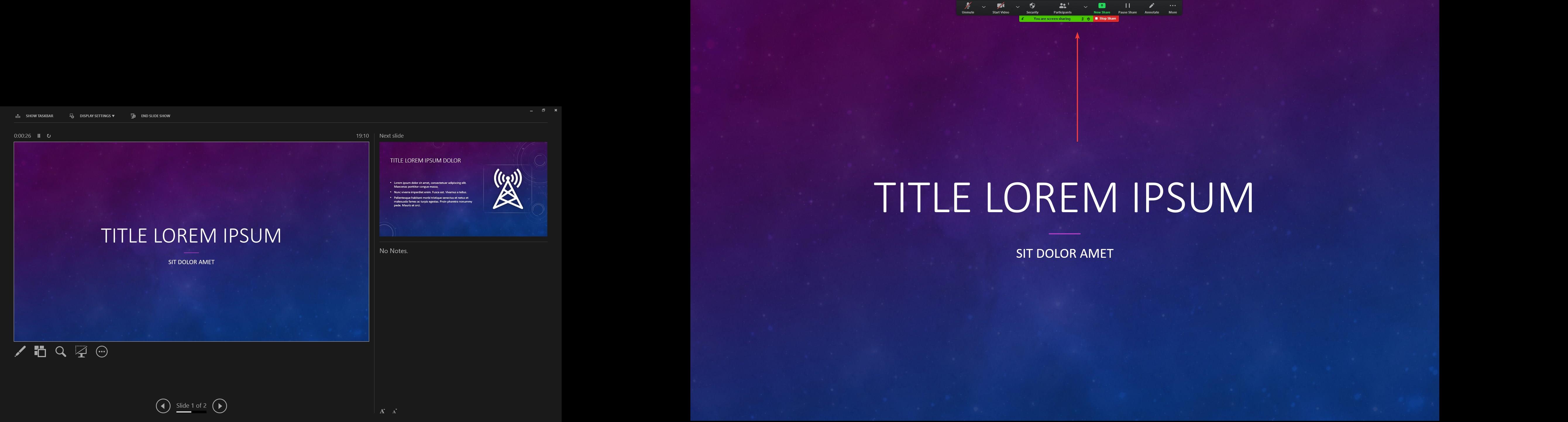
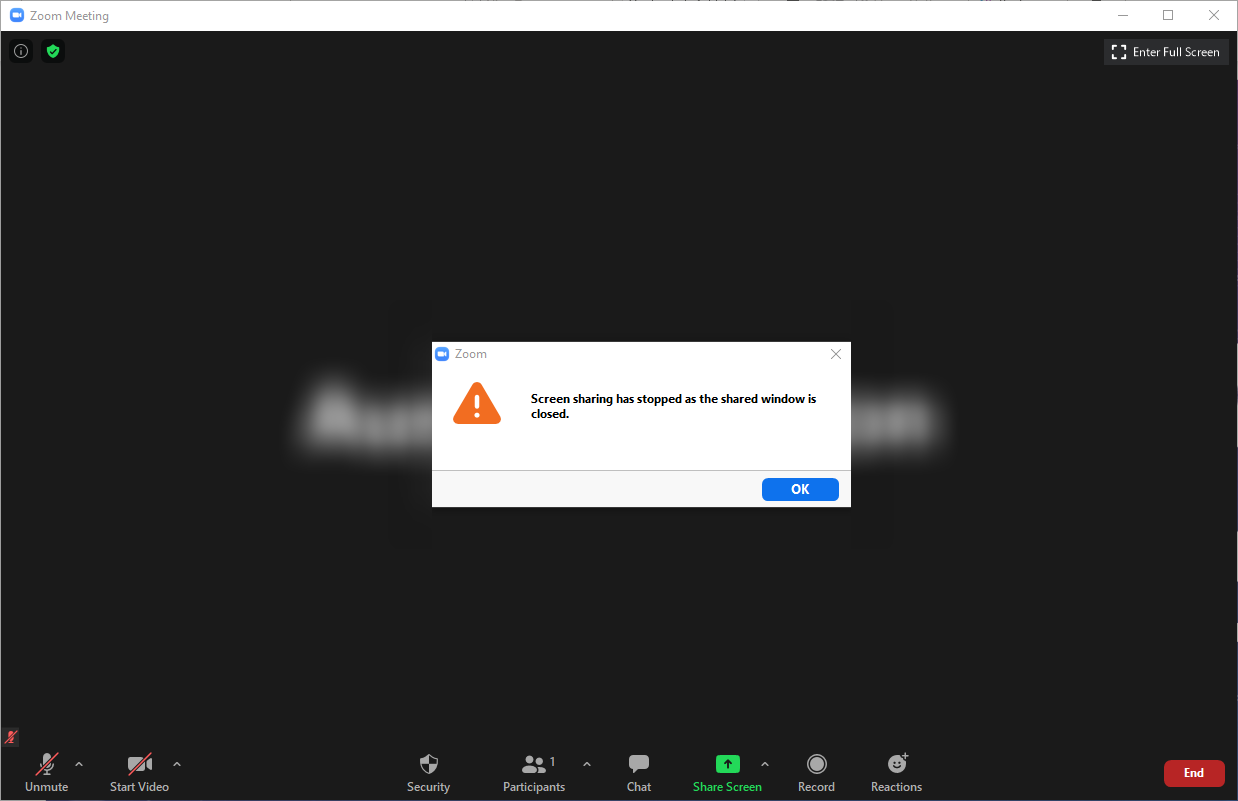
You can advance through the presentation on your main screen using the presenter view, or on your second screen, whichever you prefer. - Once you reach the end of slide show, clicking to exit will automatically close the screen sharing and return you to the main zoom window. If you need to re-visit any of the slides, you'll need to start sharing again (go back to step 1).
Comments
0 comments
Please sign in to leave a comment.